Daily backups, and how to restore your Ghost Website
Discover how Magic Pages ensures the safety of your Ghost CMS website with robust daily, weekly, and monthly backups. Learn about our secure, efficient backup strategy and storage at Scaleway data center.
 Jannis Fedoruk-Betschki
Every Magic Pages site is backed up every day, automatically. You don't have to switch anything on, and you can download the latest backup yourself at any time.
What we back up
Two separate archives, every day:
Your database. Posts, pages, members, subscriptions, tags, users, newsletters and your Ghost settings. This is the part that knows everything about your site.
Your content folder. Images, media, files, themes, and your routing and redirect files. Working caches and logs are skipped, because they rebuild themselves and would only make the archive bigger.
Together the two are a complete copy of your site. They're the same two files you'd need to move your site anywhere else.
How long we keep them
We run one backup a day and thin the older ones out as they age. Weekly and monthly backups aren't extra runs, they're the daily ones we keep for longer. What you can restore to:
- The last 7 days, one restore point per day. This is the one that catches most problems.
- The last 4 weeks, one restore point per week.
- The last 3 months, one restore point per month.
So the oldest backup you can restore from is around three months old. Anything past that is deleted for good. Every restore point covers both archives, so you always get a database and a content backup from the same run.
If you cancel your subscription, the same schedule keeps running for four weeks. After that we keep only your most recent database and content backup. Twelve weeks after cancellation, we delete all of it.
Where they're stored
Not on the server running your site. If we kept them there, one bad day in the data centre would take your site and its backups at the same time.
So each backup is compressed and transferred to separate storage at the Scaleway data center in France, with no physical connection to the servers your site runs on.
Downloading a backup yourself
Go to your Ghost admin (yoursite.com/ghost), open the Customer portal, and click the Support tab. The Backups section has a download button for each archive.
The download buttons give you the most recent backup of each type. If you need an earlier version, open the dropdown on each backup card and pick a specific date instead. You can separately download Content, Database or a Full backup, whichever you need. Start it, and you'll get an email once it's ready.
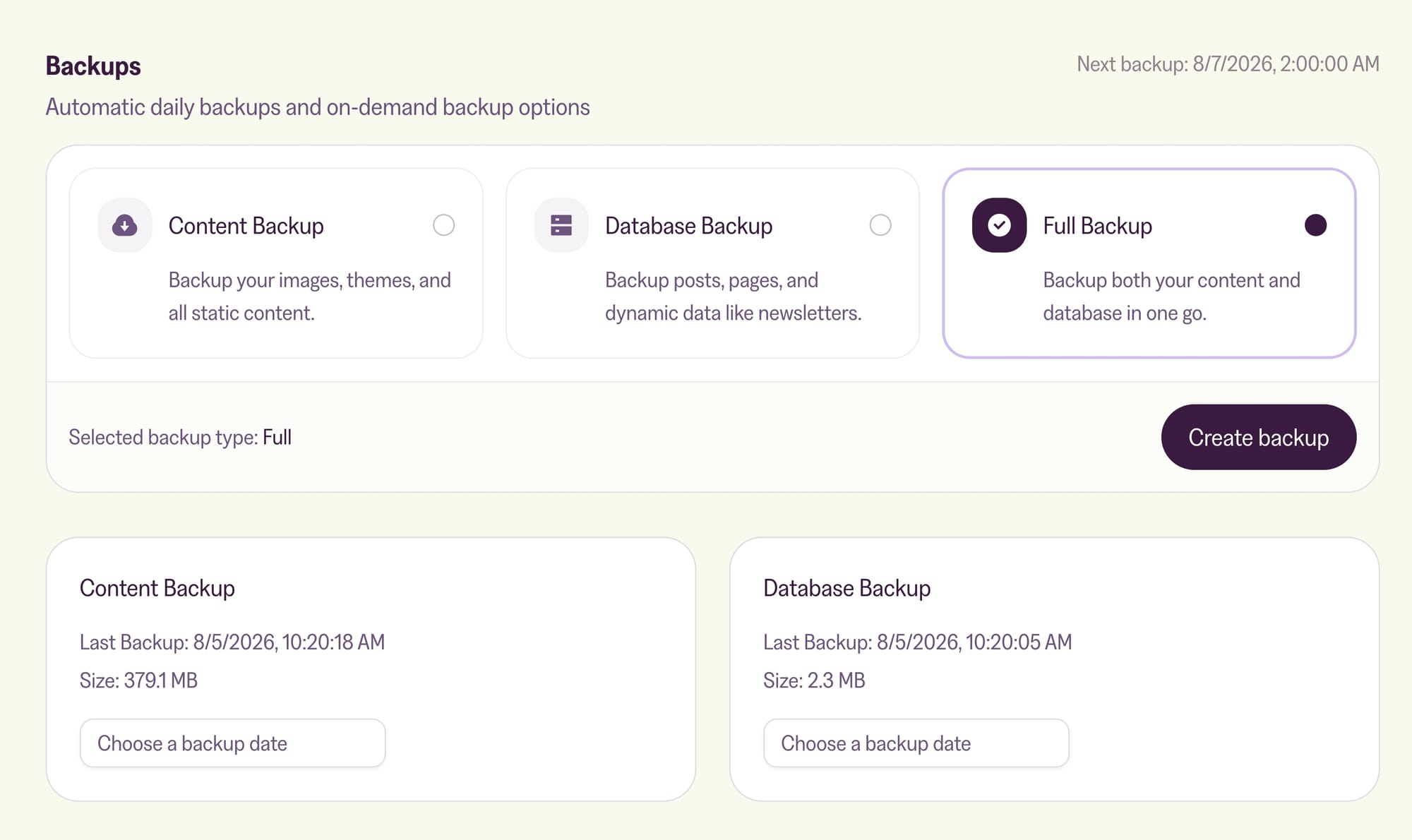
If you want a copy in storage you control as well, you can have every backup automatically forwarded to your own S3 bucket, SFTP server or cloud drive. Off-site backups to your own storage covers the setup.
If you need a backup restored
Restoring is something we do for you. There's no restore button in the customer portal, and that's deliberate: putting an old database over a live site is not something you want one mis-click away.
Email help@magicpages.co or use live chat, and tell us:
- Which site, by its address.
- What went wrong, in a sentence. "The theme upload broke the site" and "I deleted a load of posts by accident" lead to completely different restores.
- Roughly when it was still fine. A date and a rough time is plenty. This is what picks the restore point, so a guess is better than nothing.
- Whether you need everything back, or just the content folder, or just the database.
Two things that help while you wait:
Stop making changes. Anything you publish or edit after the restore point will be overwritten by the restore, and separating "broken" from "written since it broke" is what turns a quick job into a slow one.
Don't delete anything to tidy up. It rarely helps, and it can remove the very thing we'd use to put your site back.
We'll confirm what we're restoring and from when, before we touch anything.
Using a backup on your own machine
If you want to run a copy of your site locally, for theme work or just to look at something without touching production, the two archives are all you need. How to run Magic Pages backups in a local Ghost environment walks through it for both Docker and the Ghost CLI, including matching your local Ghost version to the one your site runs.
More in this section

Didn't find your answer?
Ask us anything — a real person reads every message, usually the same day.
